


Zunoy Sandbox now has inboxes that receive real email, a public feed you can share with a link, and a search you can open from any page. This release also adds API keys, quests with credit rewards, and the Zunoy AI assistant for everyone.
Below is what changed, where to find it and how to use it. For a short overview of the product, see the Zunoy Sandbox page.
Get real email into a Sandbox inbox
Sandbox used to catch mail sent to a fake SMTP server. An inbox can now also receive real email at its own address, so you can test flows that send mail through your real provider. The email sandbox works the same way for everything else you already use it for.
Real email inboxes
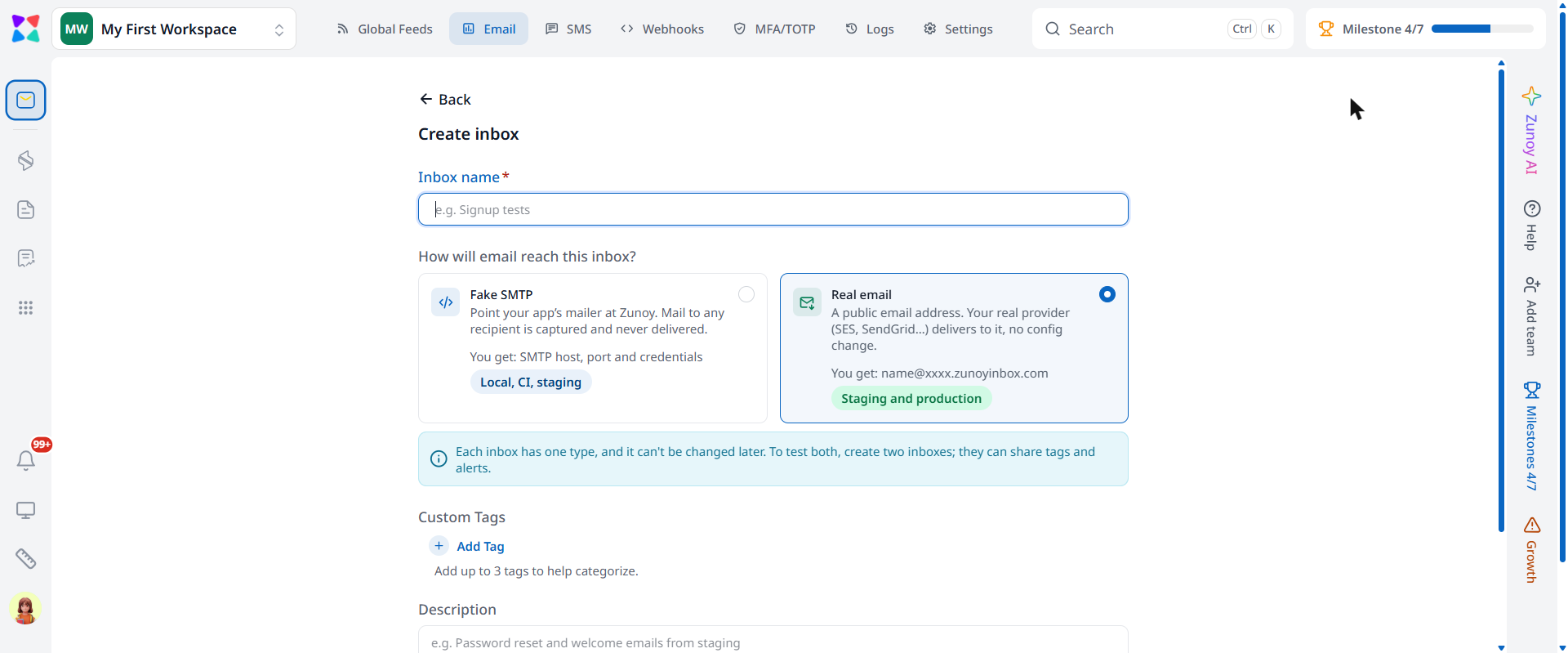
When you create an inbox, you choose how email reaches it. Fake SMTP gives you an SMTP host, port and credentials. Mail sent to any recipient is captured and never delivered, which suits local work, CI and staging. Real email gives you a public address that looks like name@xxxx.zunoyinbox.com. Your own provider, such as SES or SendGrid, delivers to it, and you do not change any configuration.
Creating an inbox now happens on a full page instead of a pop-up drawer, and the setup wizard picks Real email by default. Each inbox has one type, and you cannot change it later. To test both, create two inboxes. They can share tags and alerts.
Email ids, shuffle and tags
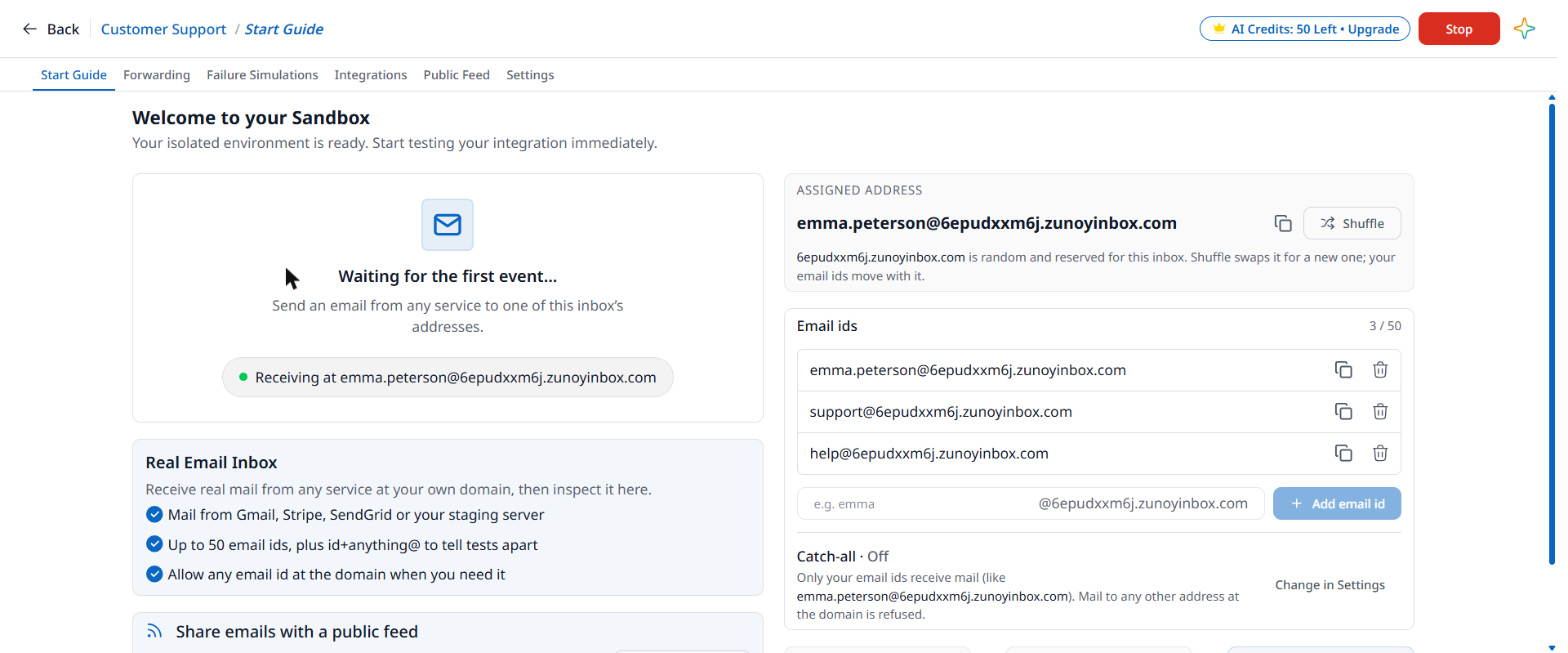
A real inbox starts with an assigned address. The Start Guide shows it with a copy button and a Shuffle button. Shuffle swaps the random part of the domain for a new one, and your email ids move with it. Until the first message arrives, the guide shows that the inbox is waiting for the first event and which address it is receiving at.
You can add up to 50 email ids to one inbox, for example support@ and help@. To tell test runs apart, add a tag after a plus sign, such as support+run-42@. The mail goes to the same inbox, and the tag is searchable. As of November 2026, one real email inbox can have up to 50 email ids and up to 3 tags.
Catch-all
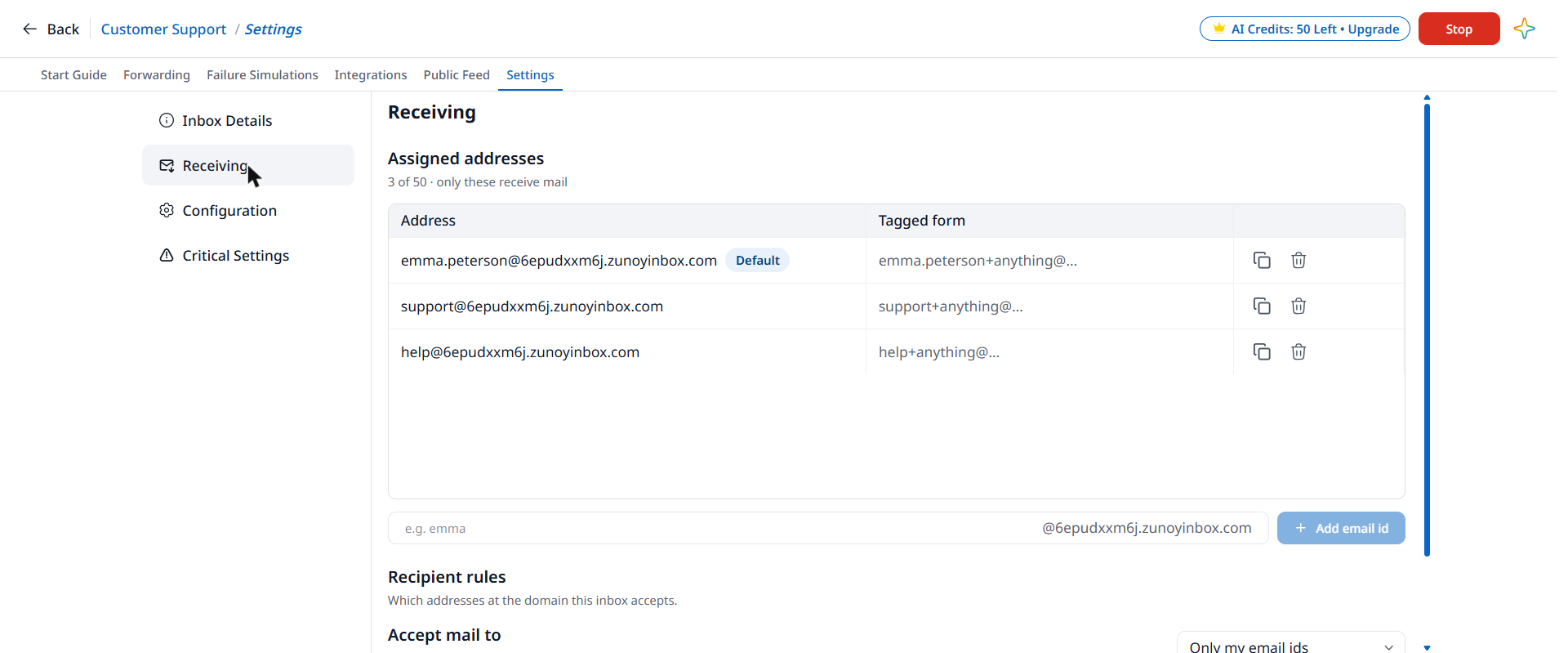
Catch-all decides which addresses at your inbox domain are accepted. With catch-all on, anything sent to anything@yourdomain lands in the same inbox. With it off, only your own email ids receive mail, and mail to any other address is refused.
You can change it under Settings, then Receiving, in the Accept mail to setting. The page now shows the choice next to your inbox’s own addresses, so you can see what each option does before you pick one. The Emails tab also appears once an inbox has received mail.
Share emails with a public feed
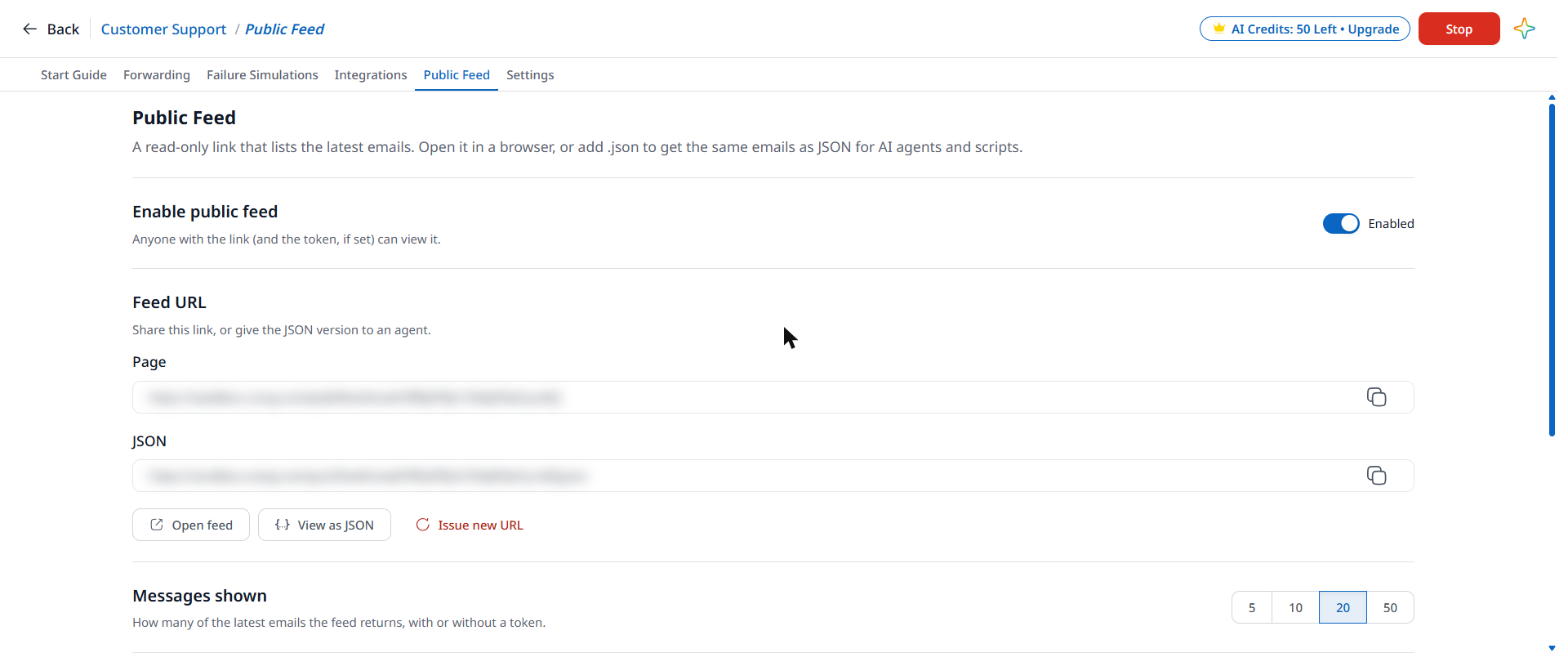
A public feed is a read-only page that lists the latest emails from an inbox. You can share it with a teammate, a client or a script without giving anyone access to your workspace. It also works for SMS sandboxes and webhook sandboxes, and each inbox has its own Public Feed tab.
Turn it on and choose how much it shows
Open an inbox, go to the Public Feed tab and switch on Enable public feed. You get a page link and a JSON link. Choose how many of the latest messages the feed returns: 5, 10, 20 or 50. The public page is also easy to read on a phone.
Protect it with a token, or hand it to an agent
Anyone with the link can open the feed. To limit that, generate an access token. Callers then send it as an Authorization header or as a token in the link. Add .json to the link to get the same emails as JSON, which helps scripts and AI agents. Add a since value with a time to get only newer emails. If a link gets shared by mistake, use Issue new URL to replace it.
Find things faster
Search from anywhere
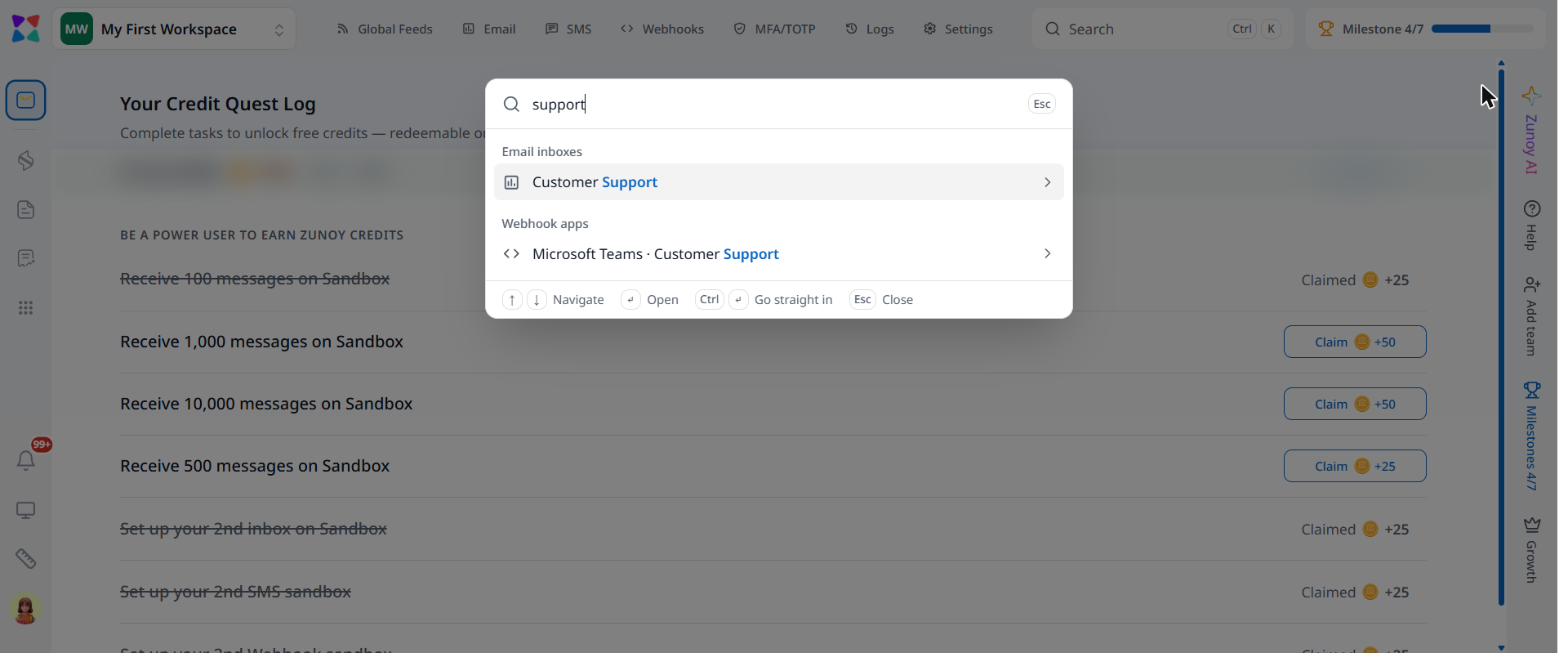
Press Ctrl+K on Windows or ⌘K on Mac to open search from any page. Type a few letters to find pages, inboxes, SMS sandboxes and webhook sandboxes, plus the tabs inside the one you have open.
Zunoy AI assistant
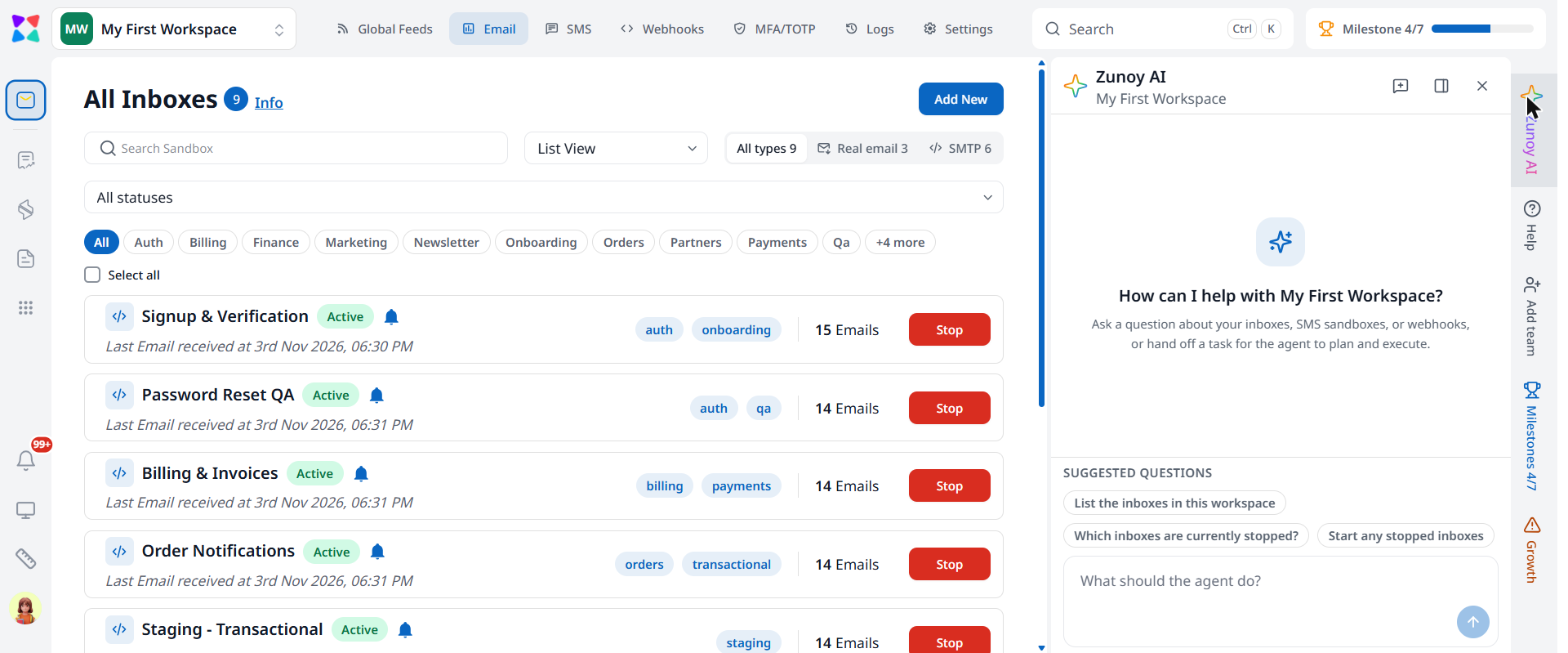
The Zunoy AI assistant is now available to everyone. It opens in a side panel. Ask it about your inboxes, SMS sandboxes or webhooks, or hand off a task and let the agent plan and run it. Suggested questions, such as listing the inboxes in a workspace, help you get started.
Connect Sandbox to your tools
API keys
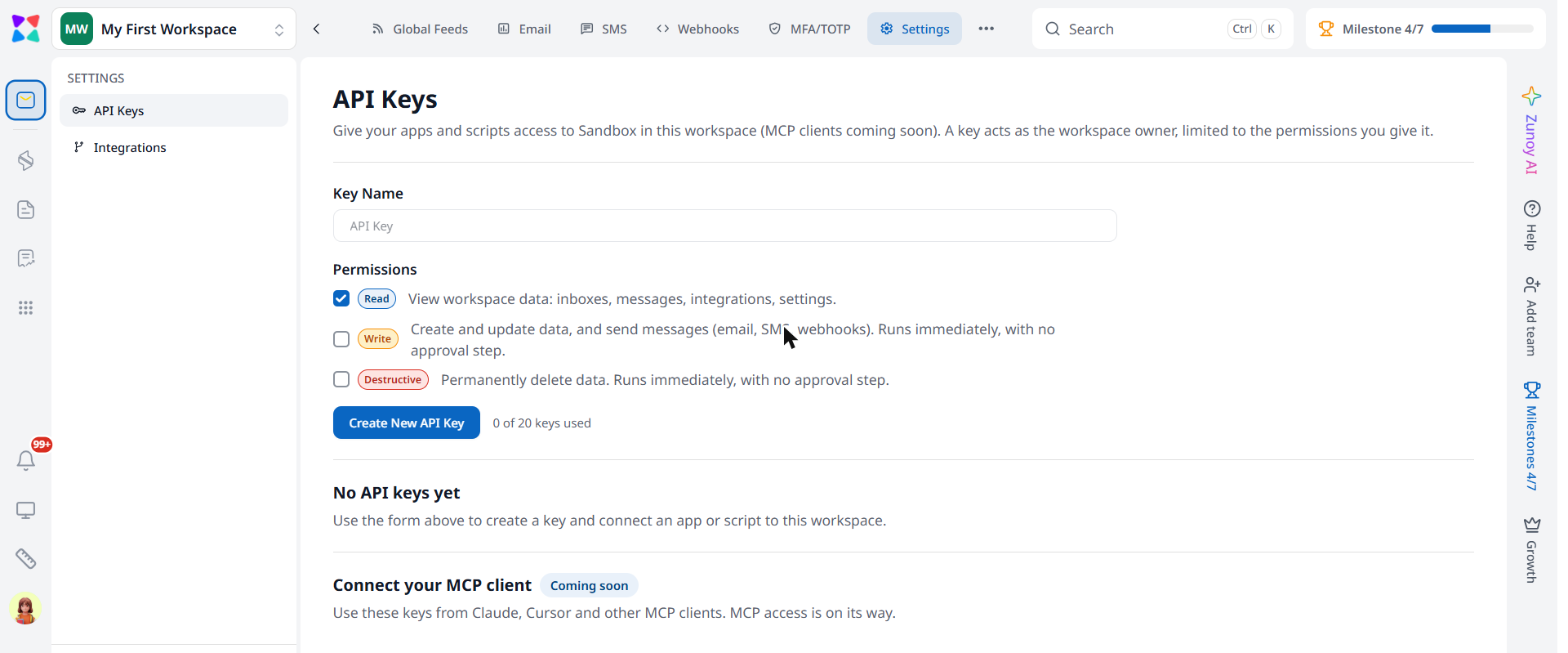
Create API keys under Settings, then API Keys. Give each key a name and choose its permissions. Read lets it view workspace data. Write lets it create and update data and send messages. Destructive lets it delete data permanently. Write and Destructive actions run immediately, with no approval step, so give a key only what it needs. A key is shown once, when you create it, so copy it then. You can see the status of each key afterwards.
Integration trigger logs
Trigger logs show what each integration did. Open them from Settings, then Integrations, or from an inbox, SMS sandbox or webhook sandbox. Integrations can send activity to Microsoft Teams, Slack, Discord, Telegram or your own webhook, so you can follow a message from the moment it arrives.
Everything in this release
- Real email inboxes: Receive real mail at a public address from your own provider.
- Fake SMTP or Real email: Choose the type for each inbox when you create it.
- Create inbox page: A full page replaces the pop-up drawer.
- Email ids and tags: Up to 50 email ids per inbox, plus tags after a plus sign.
- Catch-all: Accept mail to any address at the inbox domain, or only to your email ids.
- Public feed: Share an inbox, SMS sandbox or webhook sandbox on a read-only page, with a message limit and an optional token.
- Search: Press Ctrl+K or ⌘K to find pages, inboxes, sandboxes and tabs.
- API keys: Read, Write and Destructive permissions, shown once when you create a key.
- Integration trigger logs: See what each integration did.
- Zunoy AI assistant: Now available to everyone, in a side panel.
- Emails tab: Appears once an inbox has received mail.
Try the new Zunoy Sandbox
Create a real email inbox, turn on a public feed and try Ctrl+K search in a few minutes. Sign in to Zunoy Sandbox or create a free account. To compare plans, visit the Sandbox pricing page. If something does not work as described here, write to support@zunoy.com and we will help.
